

qa start flag. A
schedule can pin environment,
effort, and interaction speed for every run.
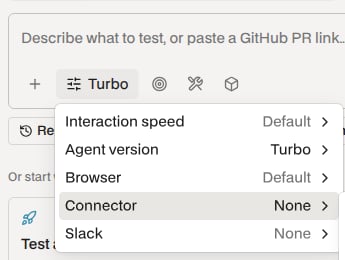
Open Session settings to choose interaction speed, browser, and Connector
Settings
Testing time and parallel sub-agents. CLI:
--effort. See
effort.How fast agents click and type.
human adds 250 ms between steps and types at
100 ms per keystroke; a typing step’s own delay overrides it. CLI:
--interaction-speed.Hosted device version for a mobile session. Defaults to Android 15 or iOS 26.
Hidden for device providers without version selection.
Channel for Mo’s reports and requests for input. Invite the Momentic Slack app
to it first. In the composer, only members who can manage integrations can
pick one. CLI:
--slack-channel.Extra capabilities for a web session: speak to voice interfaces, make clips
for upload flows, or search and read the web.
A Momentic environment. Mo sees variable names and notes and uses values
during execution.
BASE_URL sets the starting URL. CLI: --environment. A
deleted environment fails the session at start.WebGL is in alpha and renders on the CPU, so graphics-heavy apps may run
slowly. Web only. CLI:
--webgl. WebGL and Connector tunnels aren’t available
with Stealth.CLI only:
--size. Browser size for root and sub-agent browsers. Use large
for CPU-intensive apps. --webgl selects large. For a responsive layout,
name the viewport in the brief, for example at 390x844; Mo resizes in CSS
pixels without reloading, and later browsers in the session keep the size.Workspace repositories
Connect GitHub, then pick repositories on the Mo workspace page. Sessions get read-only checkouts at/home/user/workspace/repos/<repo-id>.
- Mo refreshes default branches at session start. If the refresh fails, it uses the cached checkout.
- Checkouts keep about two weeks of history. Mo can fetch full history in the background and tells you first.
- Other branches can be stale or missing. Name the branch or commit in the brief and ask Mo to confirm the checked-out revision.
Sign-in
Give Mo a test account and sign-in steps in the brief. On web, Mo can sign in once and pass the saved state to sub-agents on that account. For credentials, one-time codes, and MFA, see bot protection.Save test users
In an environment, choose Add test user and enter a Name, a Description of the account’s role, and Sign-in details such asEmail
and Password. When the brief names no account, Mo picks the test user whose
description matches the task, reuses it across sub-agents, and asks you if none
fits.
Reuse credentials across sessions
- In Mo environments, choose Create environment and set a name and Base URL.
- Add variable for
QA_EMAILandQA_PASSWORD. Turn on Sensitive for secrets; sensitive values can’t be revealed after saving. - Select the environment and reference the variables in the brief:
--env-var or --env-file. Repository
tests use environments from
momentic.config.yaml instead.