

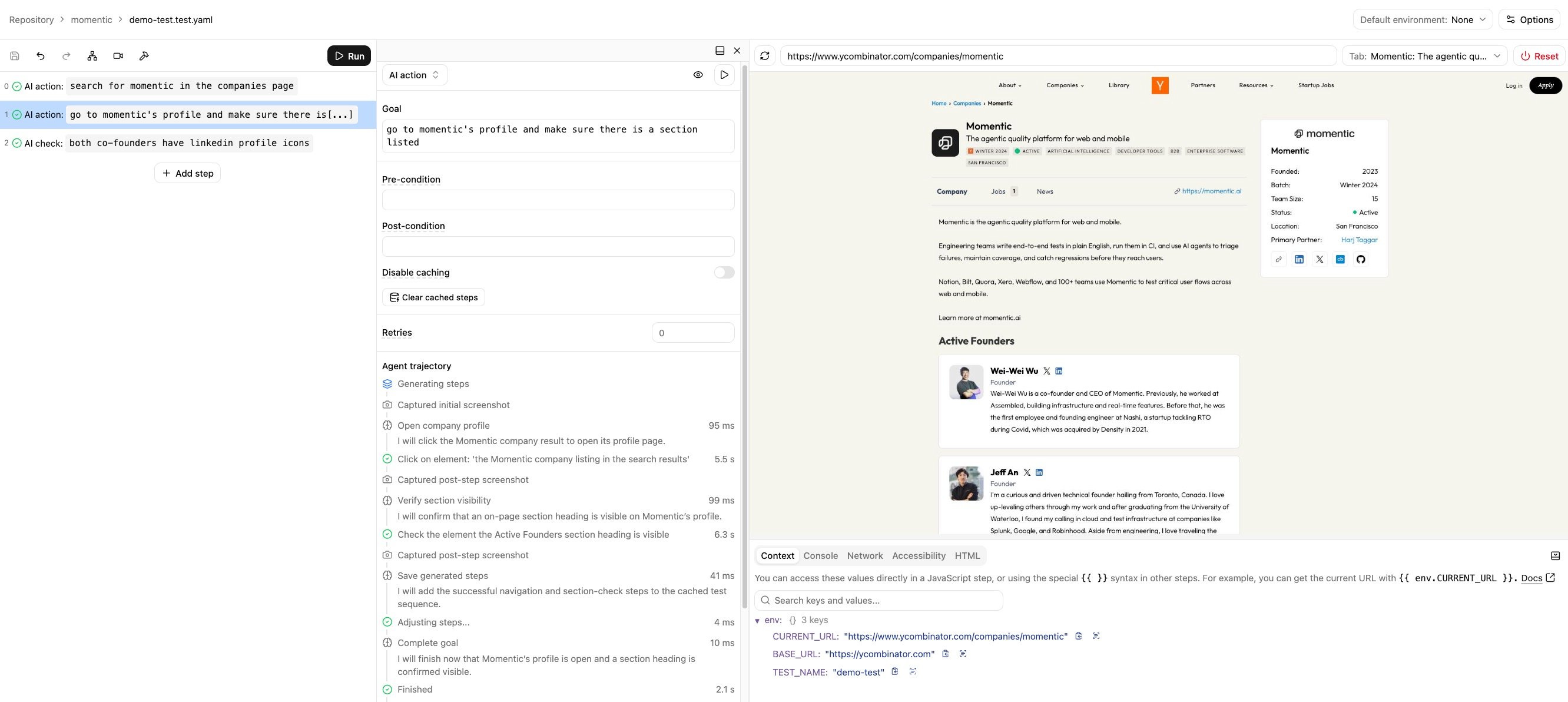
Author and run steps with a live interactive browser
Launch the local app
Momentic distributes separate npm packages for browser and mobile testing. You can launch either editor withnpx, without installing the package globally.
Run the command from the directory that contains your
momentic.config.yaml.
The app command starts the local server and opens the GUI in your default
browser. Use --config to load a config file from another location.
Local iOS Simulator sessions still require macOS and Xcode, but you can use
Momentic’s remote iOS simulators from any supported platform.
Edit tests interactively
Create tests and modules or open existing ones, then edit their settings and steps in the visual editor. Add, remove, duplicate, and reorder steps with drag and drop. Undo and redo changes while you work, then save the test as a readable YAML file in your project. You can run the full test or selected steps from the editor as you author. The live browser or device stays next to the test structure, so you can confirm each interaction against the real app.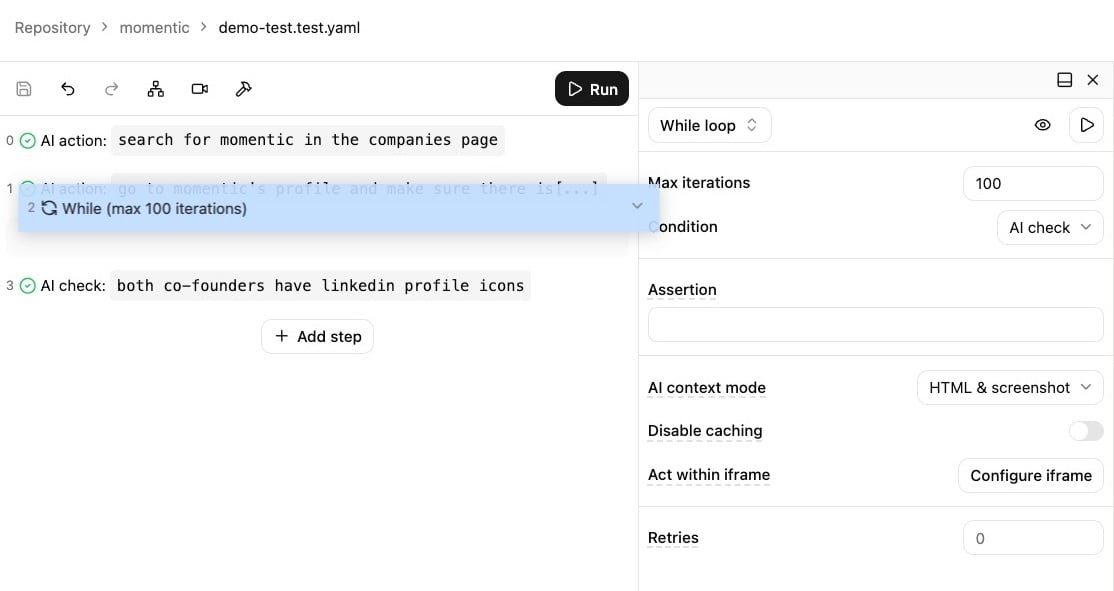
Reorder steps with drag and drop, then undo or redo changes from the toolbar
Debug browser and mobile runs
For browser runs, inspect screenshots, the current URL, console output, and network requests alongside the selected step. For mobile runs, inspect device screenshots and captured Android logcat or iOS syslog output when logging is enabled. The same run view lets you move between steps and compare the page or device state before and after an action.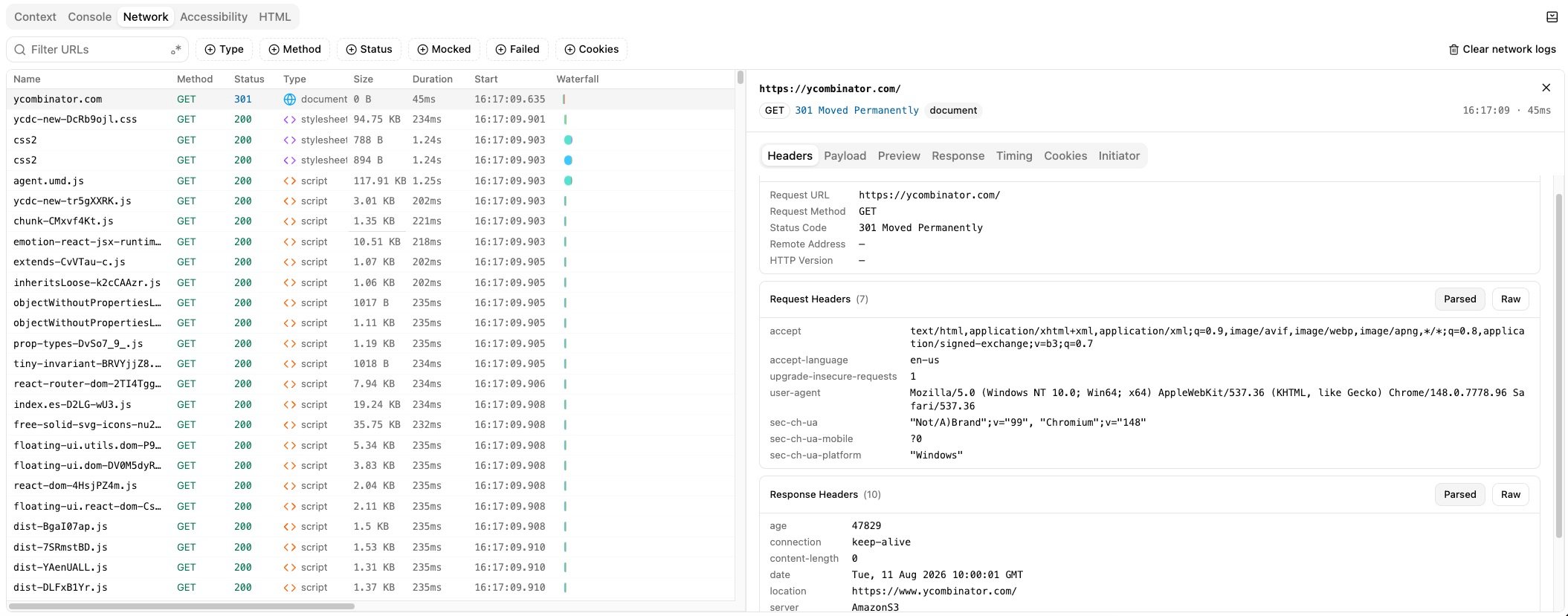
Inspect browser requests and response details without leaving the editor
Manage test settings
Manage test-level settings without editing YAML by hand. For browser tests, configure options such as the environment, viewport, retries, and browser behavior. For mobile tests, select app versions and devices, configure retries, and control device log capture. The editor writes these settings back to the test file so they remain versioned with the rest of your test suite.Next steps
- Follow the web quickstart to set up a browser project.
- Follow the iOS quickstart or Android quickstart to set up a mobile project.
- See the
momentic appcommand andmomentic-mobile appcommand for every launch option.