> ## Documentation Index
> Fetch the complete documentation index at: https://momentic.ai/docs/llms.txt
> Use this file to discover all available pages before exploring further.
# GitLab CI
> Run Momentic tests from GitLab CI, with sharding and secrets.
Example pipeline for running Momentic on
[GitLab CI](https://docs.gitlab.com/runner/). More reference configs live in
[momentic-ai/examples](https://github.com/momentic-ai/examples).
For a given root `package.json`:
```json package.json theme={null}
{
"name": "my-momentic-repo",
"scripts": {},
"devDependencies": {
"momentic": "latest"
}
}
```
Create a file called `gitlab-ci.yml` in your repository with the following
contents:
```yaml gitlab-ci.yml theme={null}
image: node:latest
stages:
- build
build:
stage: build
script:
- npm install
- npx momentic install-browsers --all
- npx momentic run
after_script:
- npx momentic results upload test-results
```
## Authentication
To run any commands, you must authenticate with Momentic. You can do this by
adding the `MOMENTIC_API_KEY` environment variable to your GitLab CI workflow.
1. Create an API key in
[Momentic dashboard](https://app.momentic.ai/settings/api-keys).
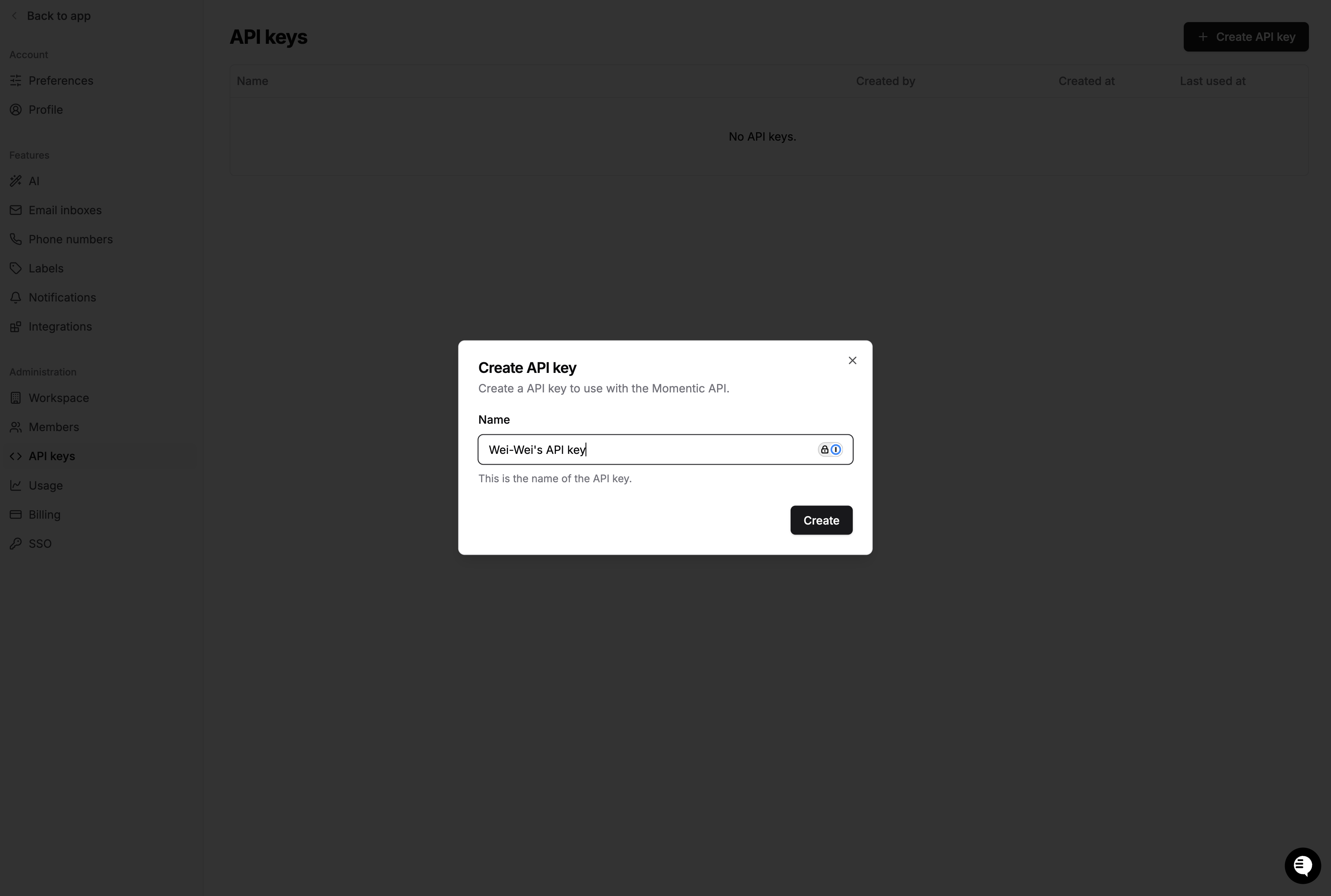 Copy the value to a safe place. You'll need it in a moment.
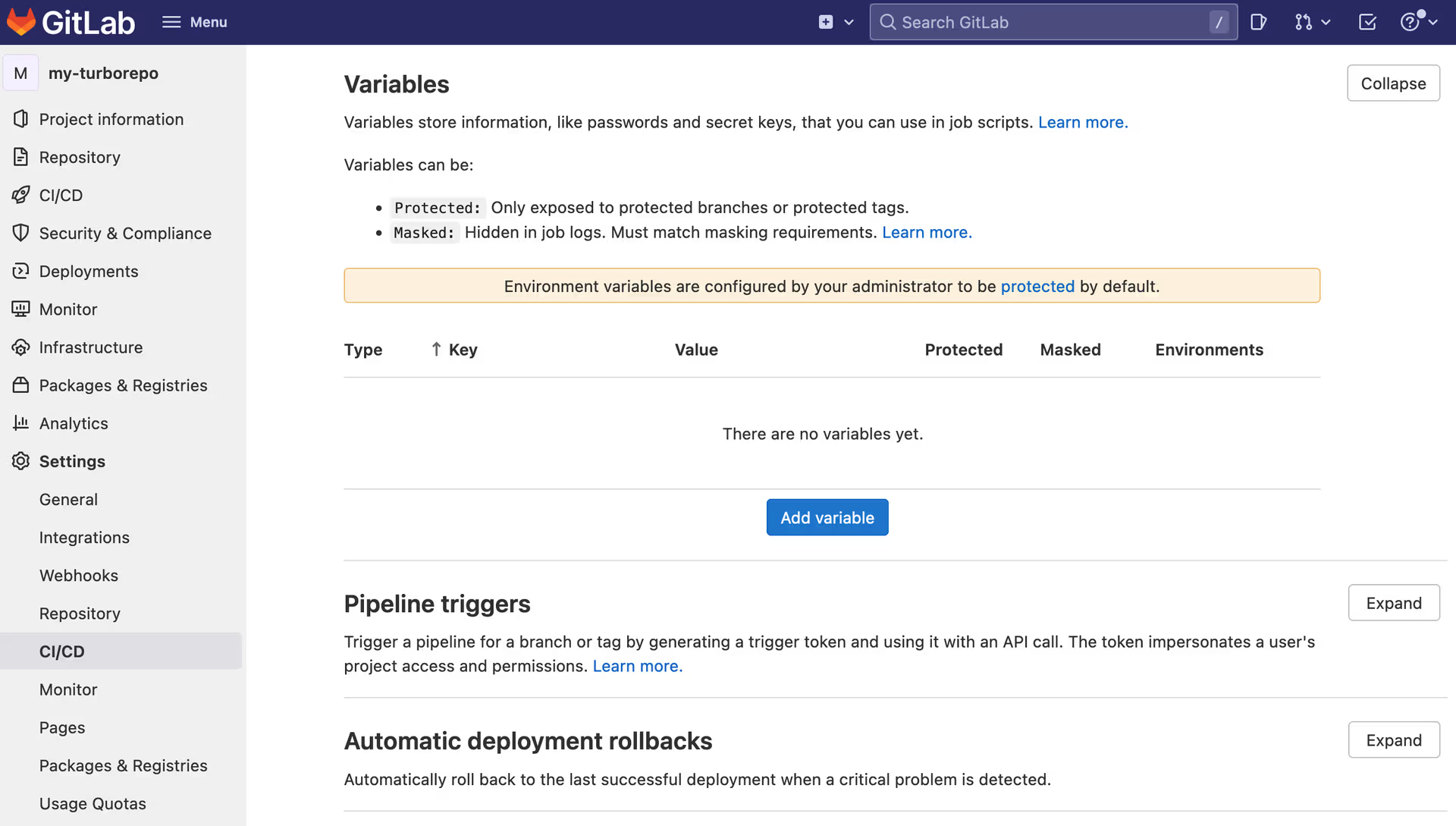
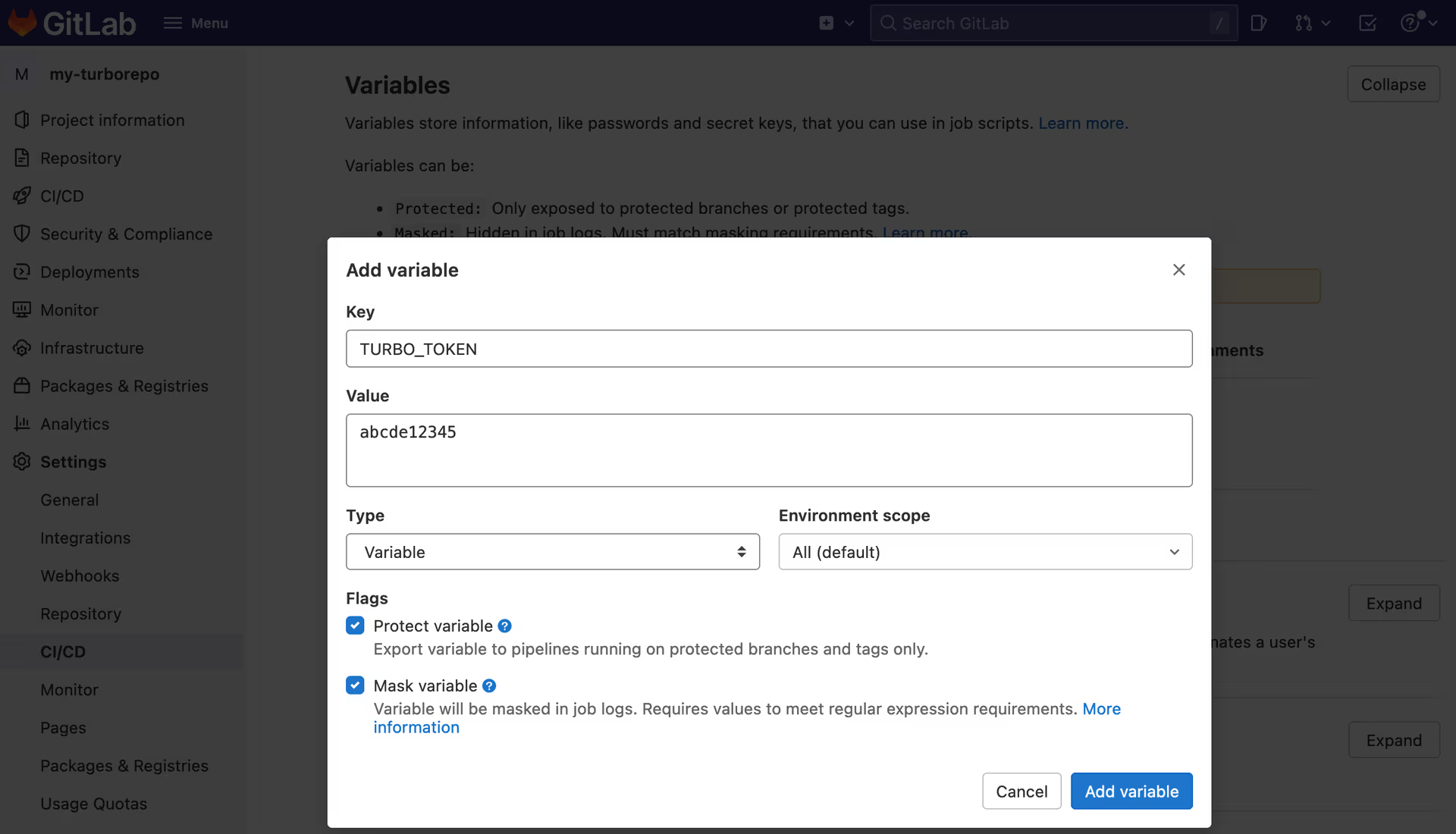
2. Go to your GitLab repository settings and click on the **Settings** and then
**CI/CD** tab. Create a new variable called `MOMENTIC_API_KEY` and enter the
value of your API key.
Copy the value to a safe place. You'll need it in a moment.
2. Go to your GitLab repository settings and click on the **Settings** and then
**CI/CD** tab. Create a new variable called `MOMENTIC_API_KEY` and enter the
value of your API key.
 3. GitLab CI automatically loads environment variables stored in project
settings into the CI environment. No modifications are necessary for the CI
file.
## Sharding
If you have a large test set, you can use sharding to run tests in parallel.
This can significantly speed up your CI runs.
To shard your tests, pass the `--shard-index` and `--shard-count` options to the
`momentic run` command. The `shard-index` is the index of the current shard
(starting from 1), and `shard-count` is the total number of shards.
To collect test results inside a single run group in Momentic dashboard, you
need to add a separate step after all tests complete to merge and upload
results.
```yaml gitlab-ci.yml theme={null}
image: node:latest
stages:
- test
- merge-results
test:
stage: test
script:
- npm install
- npx momentic install-browsers --all
- npx momentic run --shard-index=$CI_NODE_INDEX --shard-count=$CI_NODE_TOTAL --output-dir test-results/shard-$CI_NODE_INDEX
parallel: 2
artifacts:
paths:
- test-results
expire_in: 12 hours
when: always
merge-results:
stage: merge-results
when: always
dependencies:
- test
script:
- npm install
- npx momentic results merge --output-dir test-results/merged test-results
- npx momentic results upload test-results/merged
```
3. GitLab CI automatically loads environment variables stored in project
settings into the CI environment. No modifications are necessary for the CI
file.
## Sharding
If you have a large test set, you can use sharding to run tests in parallel.
This can significantly speed up your CI runs.
To shard your tests, pass the `--shard-index` and `--shard-count` options to the
`momentic run` command. The `shard-index` is the index of the current shard
(starting from 1), and `shard-count` is the total number of shards.
To collect test results inside a single run group in Momentic dashboard, you
need to add a separate step after all tests complete to merge and upload
results.
```yaml gitlab-ci.yml theme={null}
image: node:latest
stages:
- test
- merge-results
test:
stage: test
script:
- npm install
- npx momentic install-browsers --all
- npx momentic run --shard-index=$CI_NODE_INDEX --shard-count=$CI_NODE_TOTAL --output-dir test-results/shard-$CI_NODE_INDEX
parallel: 2
artifacts:
paths:
- test-results
expire_in: 12 hours
when: always
merge-results:
stage: merge-results
when: always
dependencies:
- test
script:
- npm install
- npx momentic results merge --output-dir test-results/merged test-results
- npx momentic results upload test-results/merged
```