> ## Documentation Index
> Fetch the complete documentation index at: https://momentic.ai/docs/llms.txt
> Use this file to discover all available pages before exploring further.
# Finding elements
> How to describe elements so Momentic's AI reliably finds them.
Momentic's AI reads the DOM, the accessibility tree, and a screenshot of the
viewport. Describe elements using any combination of the three.
In the web and mobile editors, use the inline **Find using description** control
on description-based target fields to verify that Momentic can locate the
matching on-screen element before you run the full test. The control is
available for mobile steps such as tap, type, element checks, scroll-to, and
drag-and-drop.
## Accessibility attributes
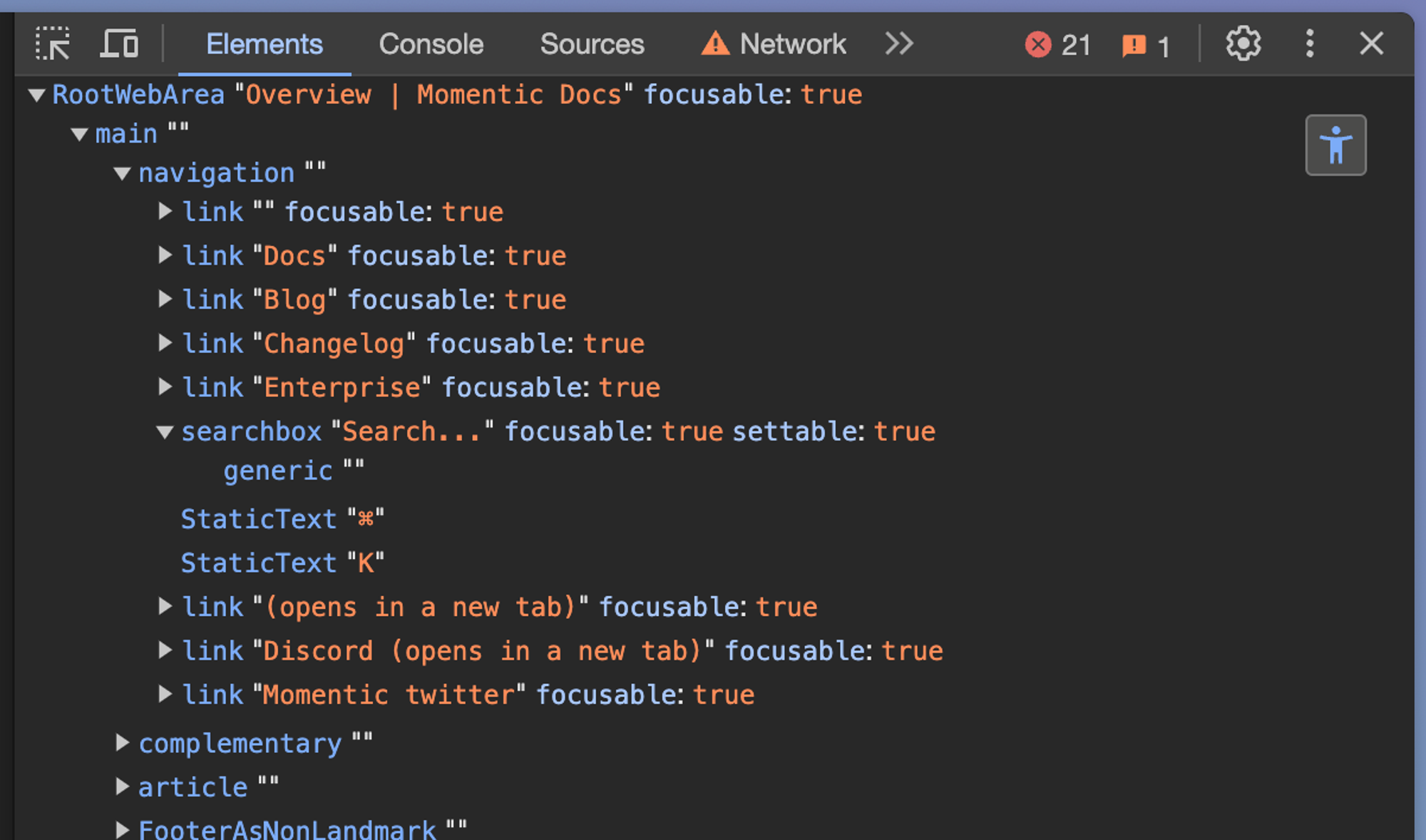
The accessibility tree is the most reliable signal: reference the element's
[accessibility role](https://developer.mozilla.org/en-US/docs/Web/Accessibility/ARIA/Roles)
(e.g. "the submit **button**", "the 'People' **tab**", "the **combobox** for
selecting a month") along with its accessible name.
Accessibility attributes like `aria-role`, `aria-label`, and `alt` are a
testing [best practice](https://playwright.dev/docs/locators) and improve UX
for real users too. Use Chrome DevTools' [accessibility
tree](https://developer.chrome.com/blog/full-accessibility-tree#full_accessibility_tree_in_devtools)
to inspect what Momentic sees.
 ## Text content
Reference visible text directly: "the **'Welcome'** header", "the text area
containing **'Lorem Ipsum'**".
Single-quote text to require an exact match. For example, "the 'Sign in' button.
don't allow any typos".
`id`, `value`, `type`, `class`, `height`, `width`, `target`, `title`, `href`,
`src`, `alt`, `role`, `headers`, `scope`, `checked`, `required`, `action`,
`min`, `max`, `minlength`, `maxlength`, `multiple`, `pattern`, `placeholder`,
`accept`, `contenteditable`, `data-value`, `data-testid`, `data-cy`,
`data-test-id`, `data-test`, `data-role`, `data-type`, `data-key`,
`data-action`, `data-hidden`, `data-handleid`, `data-handlepos`,
`data-col-index`, `data-row-index`, `data-row`, `data-col`
Add more with
[`importantAttributes`](/configuration/browser#browser-importantattributes), or
exclude noisy ones with
[`bannedAttributes`](/configuration/browser#browser-bannedattributes).
## Visual information
The AI is trained on colors, shapes, sizes, and positions: "the **red** 'Cancel'
button", "the **thumbs up** icon", "the **hamburger menu** beside the logo".
Visual info is limited to the current viewport. DOM and accessibility tree
access is not.
Avoid visual-only descriptions for elements smaller than 12x12 pixels or
embedded in a row of similar icons.
## Positional cues
Use positional cues when multiple elements match the same description.
### Absolute
"...**at the top** of the page", "...**in the bottom right corner**".
### Relative
"...**below** the 'Introduction' header", "...**beside** the 'Back' button".
* `inside` scopes to a parent: "the 'Submit' button **inside** the user dialog"
* `closest` picks the nearest match: "the **closest** 'Submit' button to the
'Username' input"
### Ordering
Use `nth` for ordered lists: "the **second** 'Submit' button".
If element order changes between runs, disable
[caching](/reliability/step-cache) on that step.
## Text content
Reference visible text directly: "the **'Welcome'** header", "the text area
containing **'Lorem Ipsum'**".
Single-quote text to require an exact match. For example, "the 'Sign in' button.
don't allow any typos".
`id`, `value`, `type`, `class`, `height`, `width`, `target`, `title`, `href`,
`src`, `alt`, `role`, `headers`, `scope`, `checked`, `required`, `action`,
`min`, `max`, `minlength`, `maxlength`, `multiple`, `pattern`, `placeholder`,
`accept`, `contenteditable`, `data-value`, `data-testid`, `data-cy`,
`data-test-id`, `data-test`, `data-role`, `data-type`, `data-key`,
`data-action`, `data-hidden`, `data-handleid`, `data-handlepos`,
`data-col-index`, `data-row-index`, `data-row`, `data-col`
Add more with
[`importantAttributes`](/configuration/browser#browser-importantattributes), or
exclude noisy ones with
[`bannedAttributes`](/configuration/browser#browser-bannedattributes).
## Visual information
The AI is trained on colors, shapes, sizes, and positions: "the **red** 'Cancel'
button", "the **thumbs up** icon", "the **hamburger menu** beside the logo".
Visual info is limited to the current viewport. DOM and accessibility tree
access is not.
Avoid visual-only descriptions for elements smaller than 12x12 pixels or
embedded in a row of similar icons.
## Positional cues
Use positional cues when multiple elements match the same description.
### Absolute
"...**at the top** of the page", "...**in the bottom right corner**".
### Relative
"...**below** the 'Introduction' header", "...**beside** the 'Back' button".
* `inside` scopes to a parent: "the 'Submit' button **inside** the user dialog"
* `closest` picks the nearest match: "the **closest** 'Submit' button to the
'Username' input"
### Ordering
Use `nth` for ordered lists: "the **second** 'Submit' button".
If element order changes between runs, disable
[caching](/reliability/step-cache) on that step.